Transactions Explorer
Open Transactions to search across accounts in the selected household, investigate an entry or correct its category and planning treatment. It is not a bank-payment or transaction-creation screen.
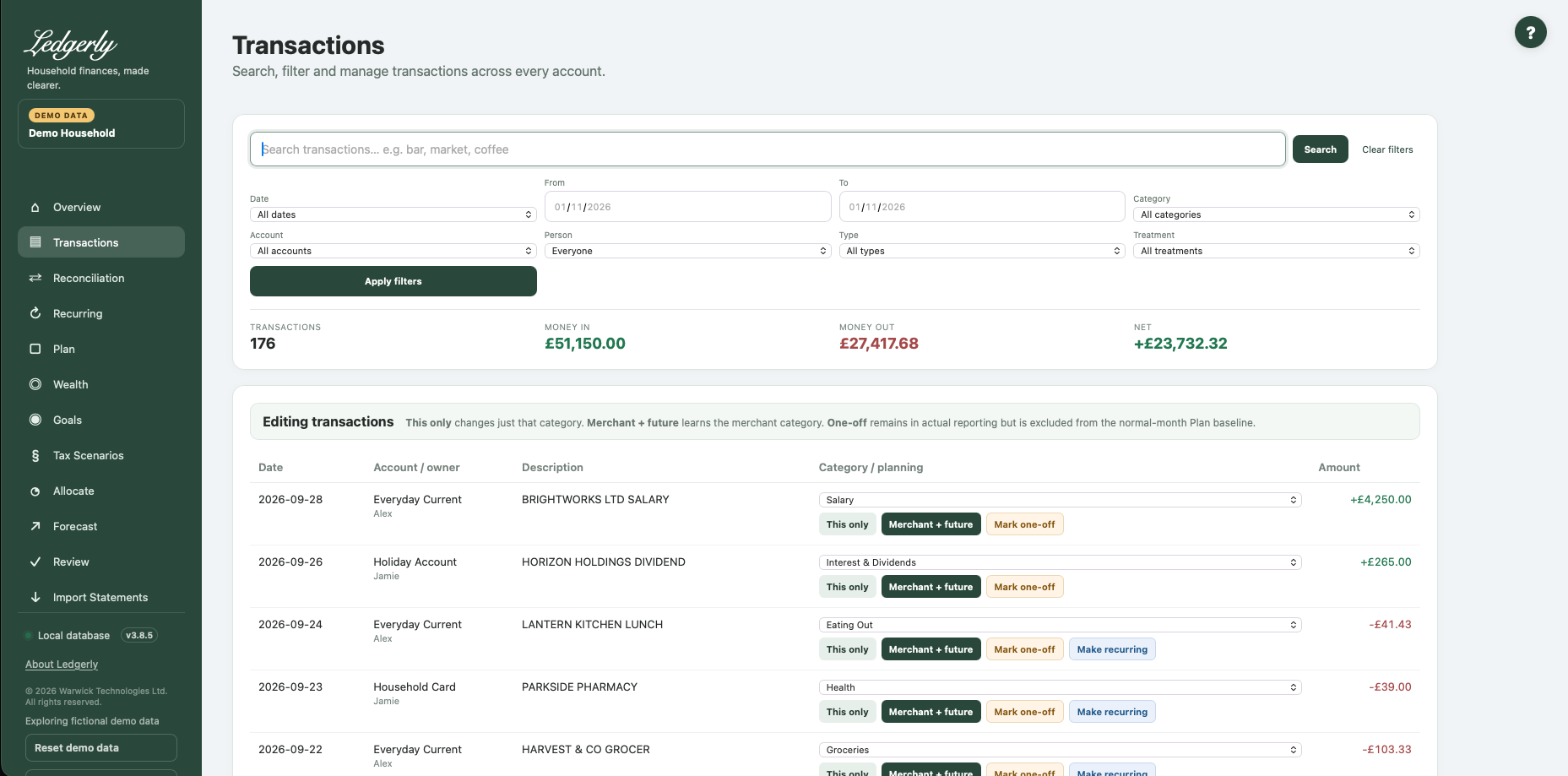
Search and filters
Fields and choices
| Field | Defaults, required values and validation | What changes |
|---|---|---|
| Search | Optional case-insensitive substring; raw description or cleaned merchant | Filters across all accounts in selected household |
| Date | All dates default; this_month,last_month,this_year,custom in UI | Presets overwrite date_from/to for current date |
| From | Optional ISO date; inclusive ≥ comparison; browser date input | Lower date bound |
| To | Optional ISO date; inclusive ≤ comparison; browser date input | Upper date bound |
| Category | All categories default; numeric ID applied | Filter chosen transaction category |
| Account | All accounts default; numeric ID applied | Filter financial account |
| Person | Everyone default; numeric ID applied | Filters account owner, not economic planning responsibility |
| Type | All types default; income,expense,investment,transfer,ignore | Filter category kind |
| Treatment | All treatments default; normal or one_off | Filter planning treatment |
| Category per transaction | Required existing category for category saves | Changes category of one or merchant family |
Enter part of a raw description or cleaned merchant name and select Search. Matching is case-insensitive: a partial word is enough. Combine Date, From/To, Category, Account, Person, Type and Treatment, then select Apply filters. Clear filters returns to the unfiltered list.
Date presets use the calendar date on the server. Choose a custom range to inspect older imports. Person filters the account owner; it does not filter economic responsibility in Plan. Type follows the transaction category's kind: income, spending, investment, transfer or ignored.
The totals cover all matching records, but the visible table is limited to the latest 1,000 rows. Narrow the filters if you cannot see an older entry. Money in/out here includes all matching positive/negative entries; unfiltered transfers can therefore contribute to these totals even though they are excluded from true household spending.
Correct a category
- Locate the transaction and choose its category.
- Select This only to change and confirm just that transaction.
- Select Merchant + future only when the category suits the whole merchant family. This changes matching family records in this household and can learn a safe prefix for future imports.
- Revisit Overview or Plan to inspect the effect.
Example: a £40 supermarket refund should use the same expense category as the original shopping. Making it Other Income would overstate income instead of offsetting that spending.
One-off planning treatment
Mark one-off leaves the transaction in actual reporting but excludes it from normal-month Plan estimates and historical lifestyle references. Use it for an exceptional repair or a periodic bill paid from a provision. Mark normal reverses that planning treatment.
One-off does not erase the payment, create saving or remove a separately approved recurring commitment. If a recurring Plan item already covers a funded goal, link the goal to that item rather than adding a second reserve.
Make a payment recurring
For an outgoing expense/investment, Make recurring creates or updates an approved monthly recurring entry and opens Recurring. Check its amount and type. This shortcut assumes monthly; it is not a cadence selector.
Limits and common mistakes
There is no UI for changing imported amounts/dates, deleting or splitting transactions, creating custom categories or exporting CSV. Keep the original bank export. Do not use Merchant + future for a merchant that genuinely spans different purposes. Automatic transfer processing can reapply transfer classification in some cases; inspect Reconciliation before repeatedly changing categories.
Related: Review, imports, FAQ, import troubleshooting.